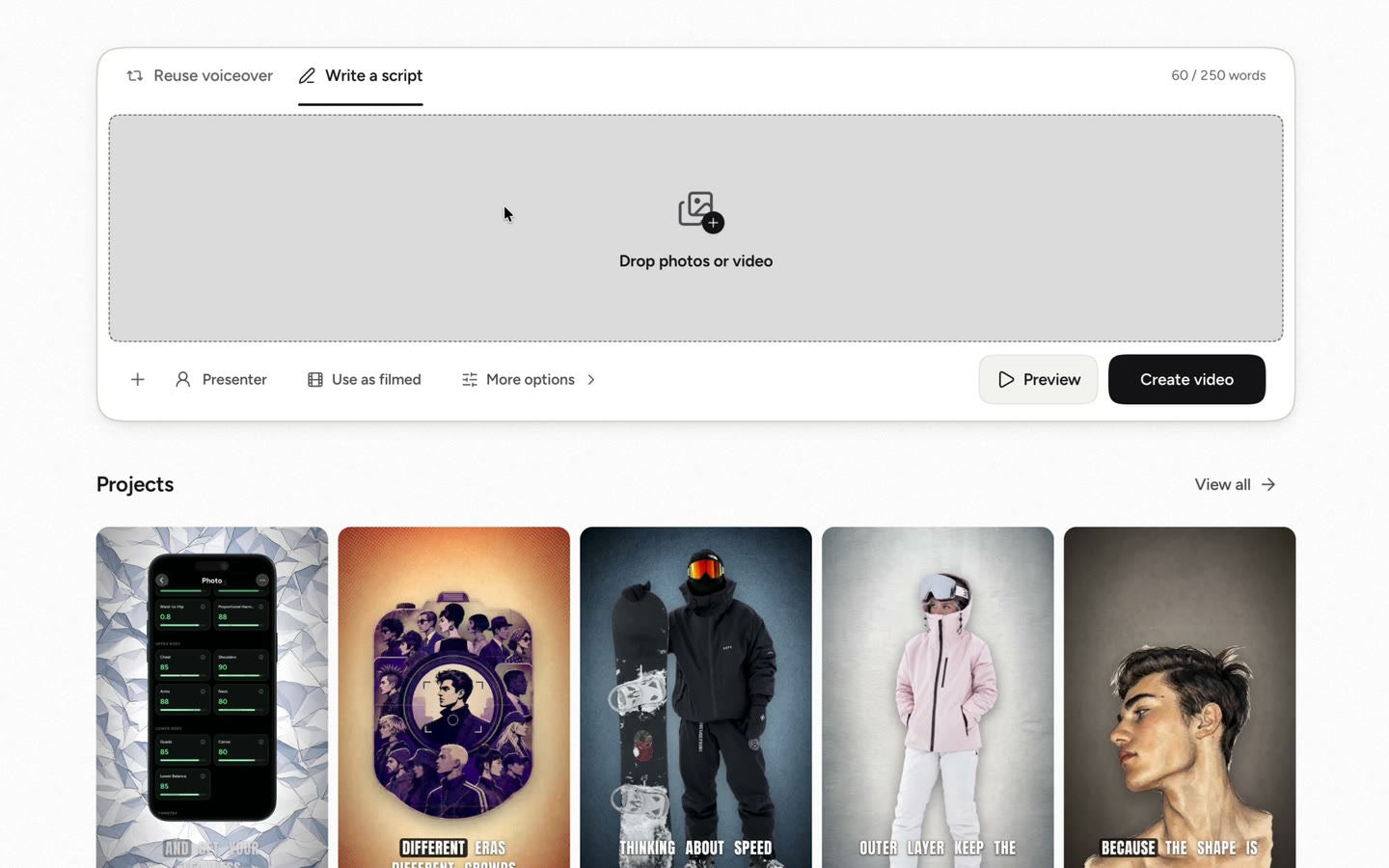


Turn your script into an animated video you can edit.

Create videos for TikTok, Reels, and YouTube Shorts with AI visuals, voiceover, captions, and sound. Use your own photos and clips, then edit each scene before export.

Up to 250 words. You can also attach photos and choose an optional AI avatar.

Made with Shortsly

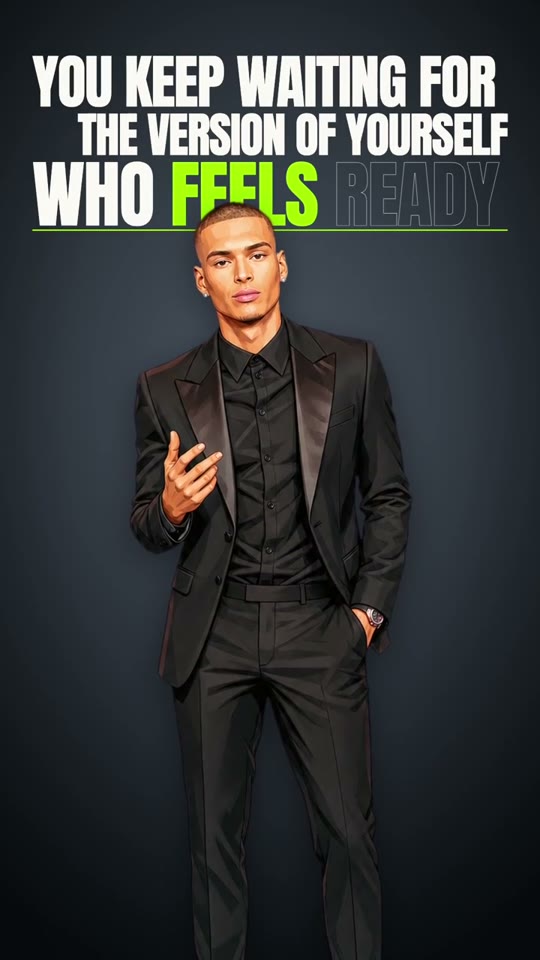
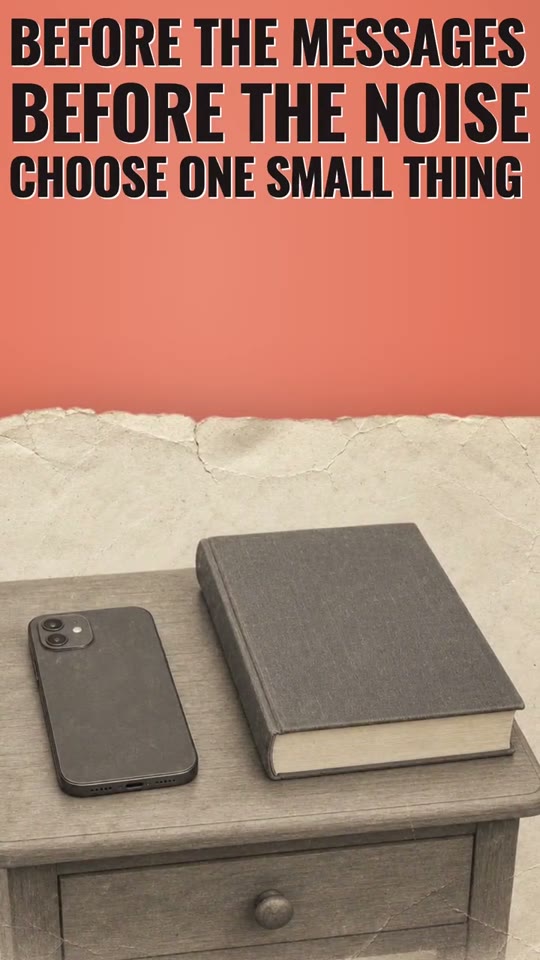
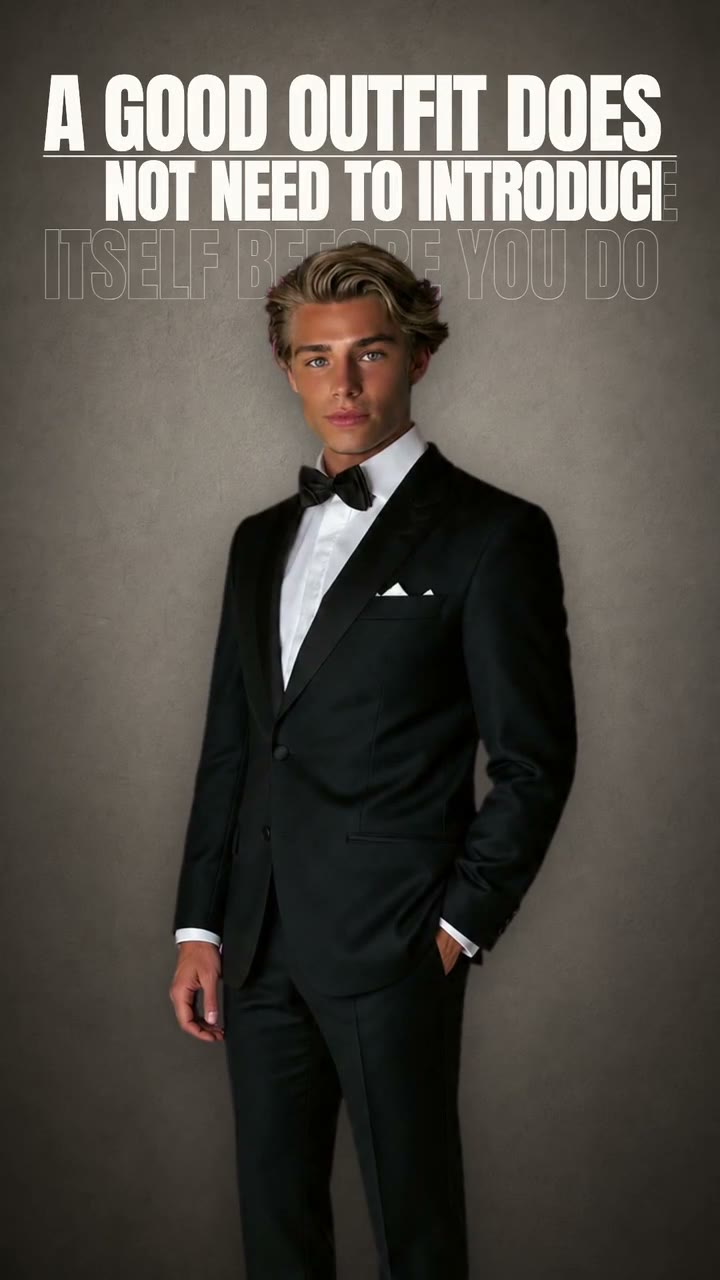
Showing videos 1 through 1 of 6

Create an editable video from your script.

Shortsly turns your script, photos, and clips into a video you can edit on a multi-track timeline.

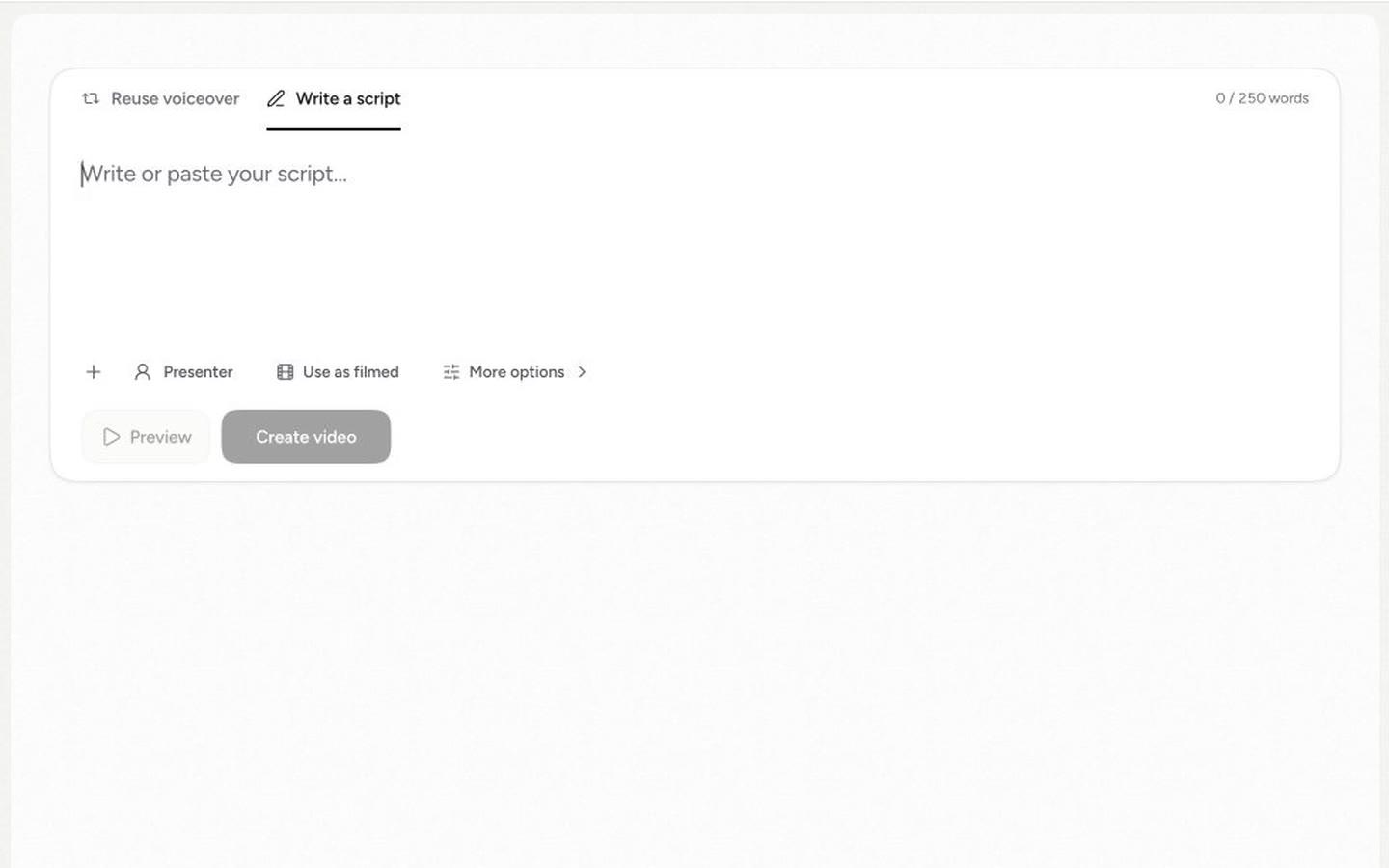
Start with the script for your video.Start with your video script.

Paste your script and let Shortsly plan the scenes. See the full guide.Paste a finished video script or write it directly in Shortsly. The script sets the structure and helps Shortsly plan every scene. The complete script-to-video guide shows the full workflow.
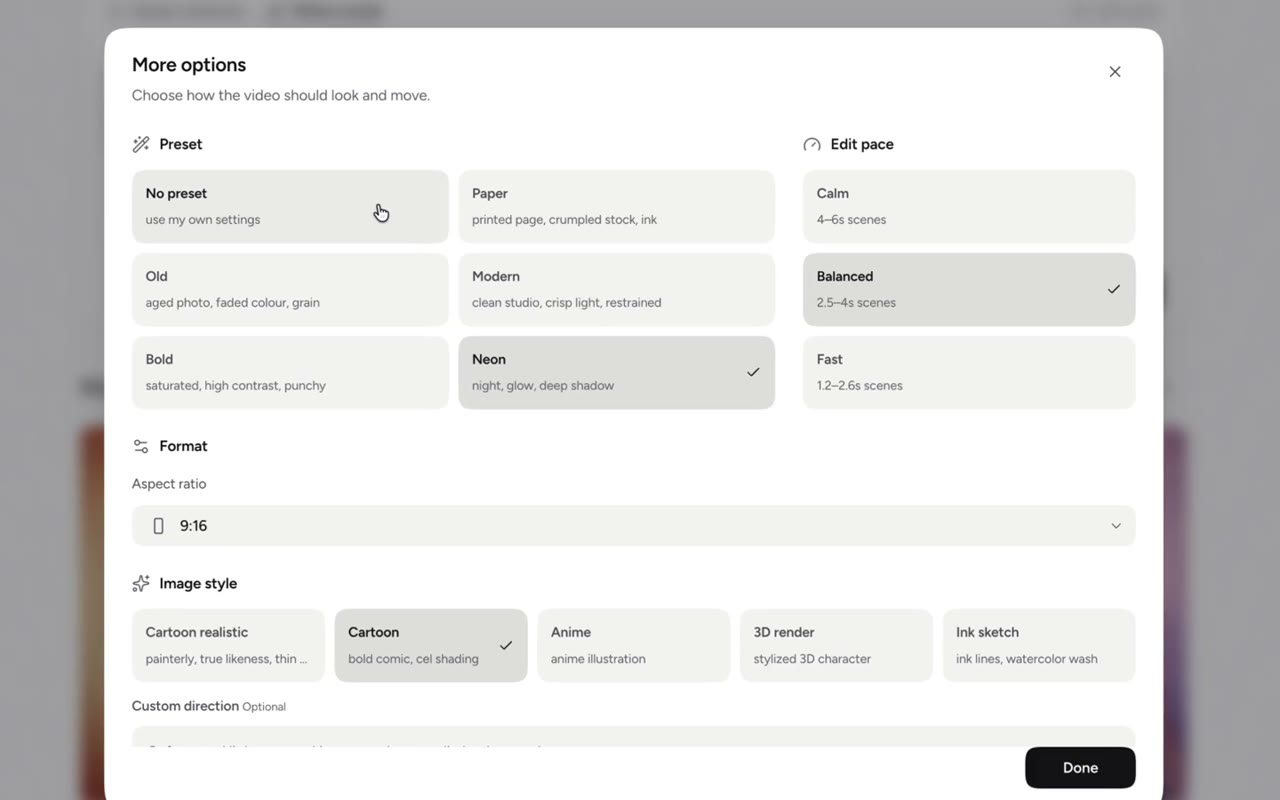
Choose your video’s visual style and pace.

Set the format, visual style, pace, and voiceover before you generate.Choose the aspect ratio, pacing, visual style, background, and AI voiceover. Add custom instructions when you want a more specific look.

Bring your own photos and video clips.

Use your own media, add an avatar, and let Shortsly create the remaining visuals.Upload photos and video clips, then choose where an AI avatar appears. Shortsly creates the remaining visuals around the media you provide.

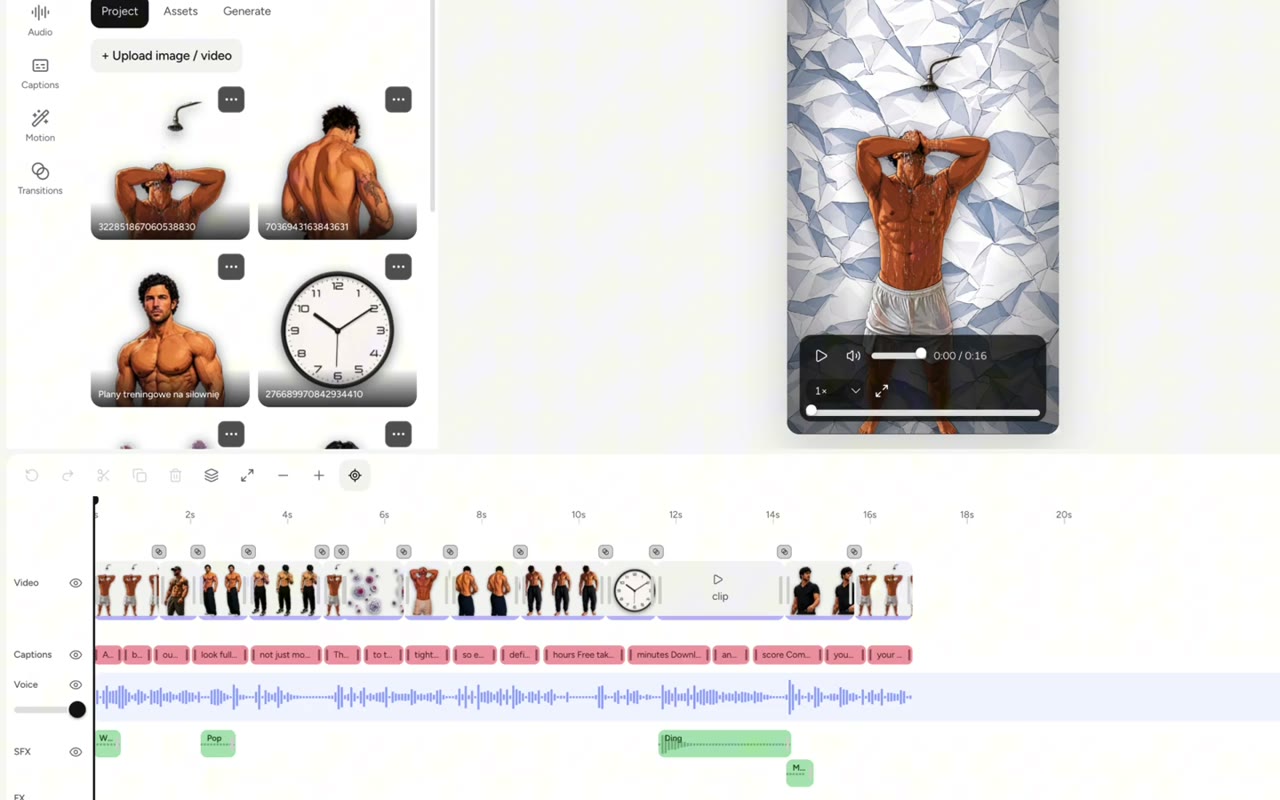
Fine-tune every scene on the timeline.

Adjust visuals, captions, timing, and sound before you export.Your video opens as an editable project, not a locked MP4. Replace photos and clips, correct captions, adjust timing, and refine the audio before exporting the final video.

Keep control of your video.

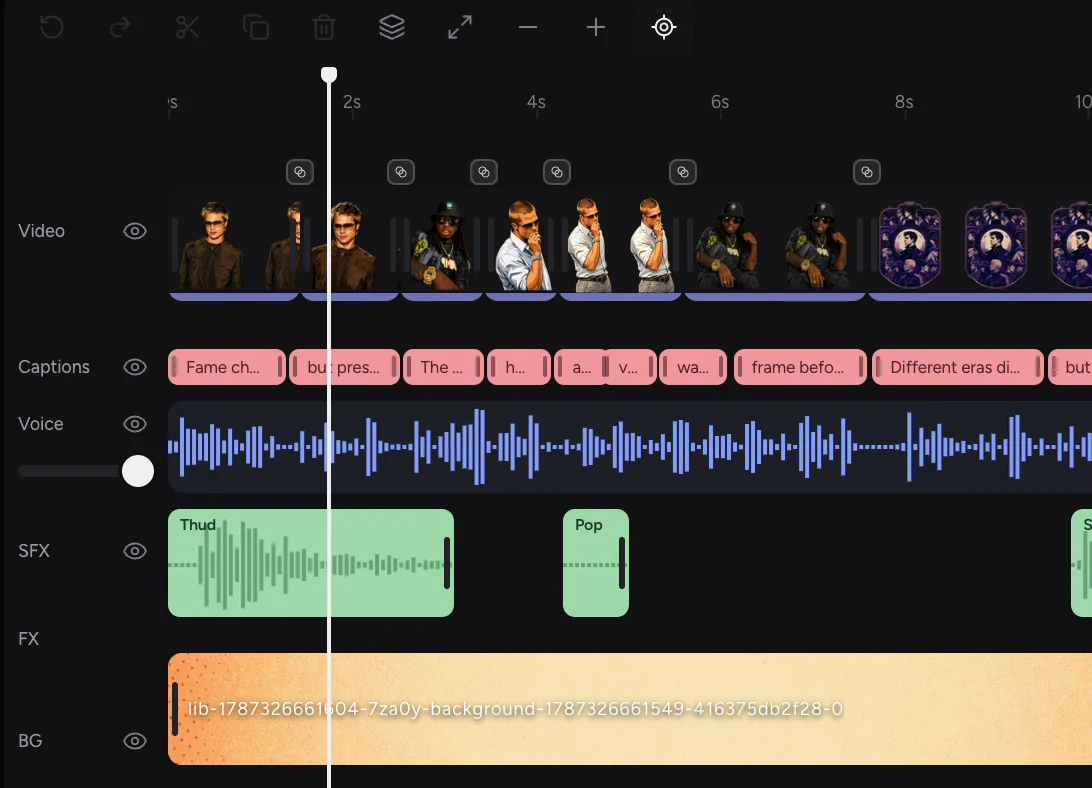
Edit every scene on the timeline

Move video clips, change captions, add sound effects, and adjust timing before export.

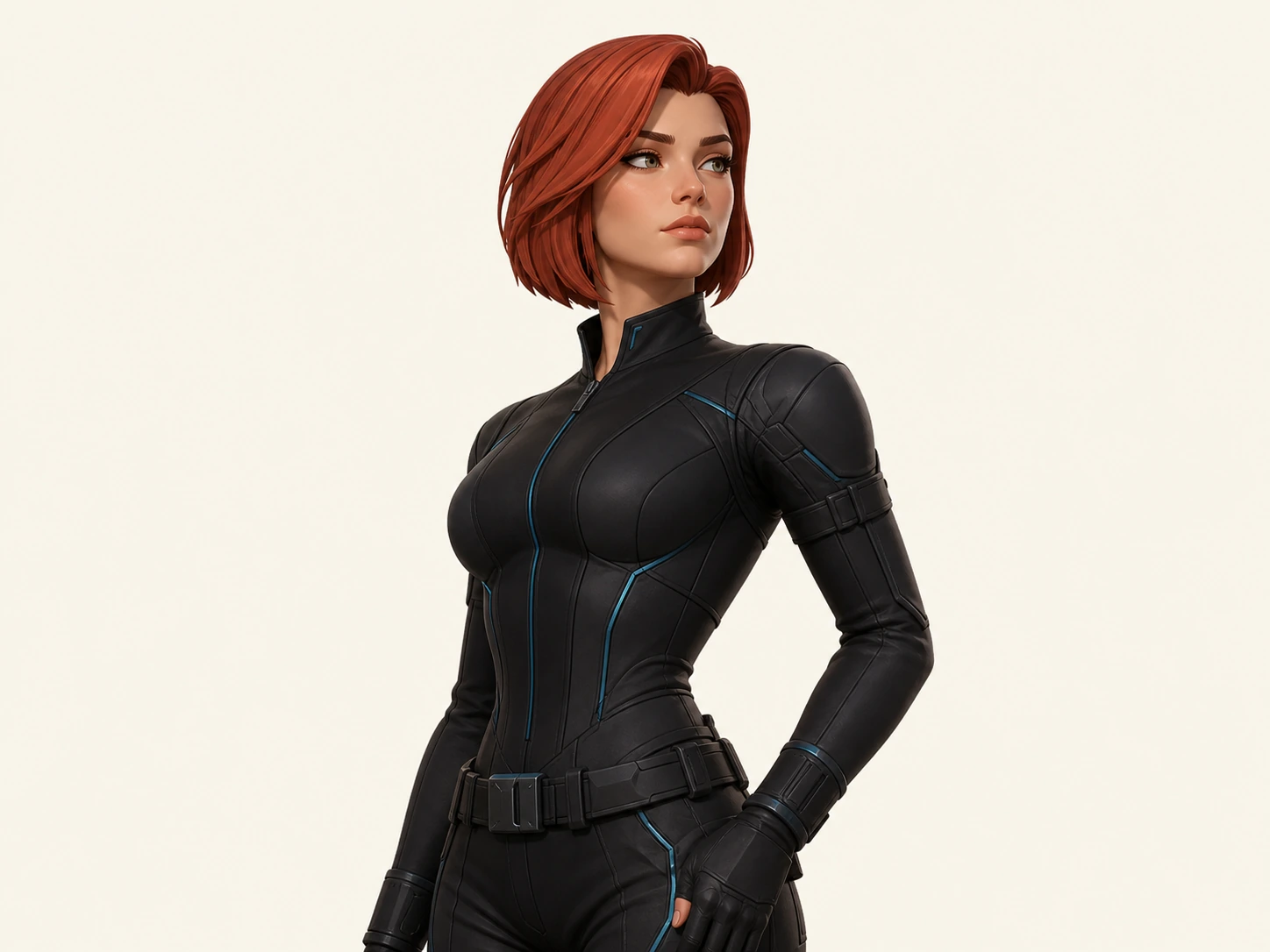
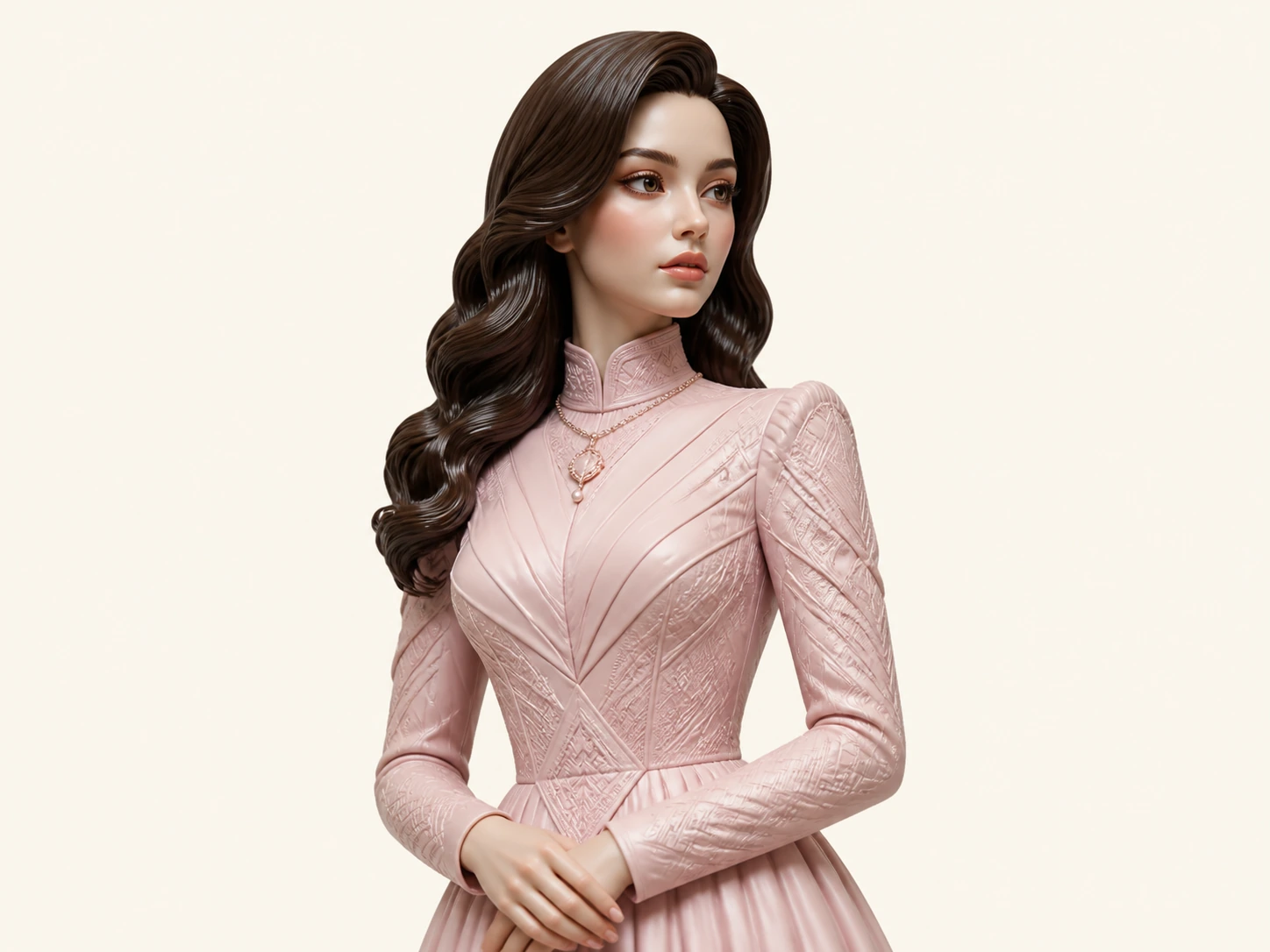
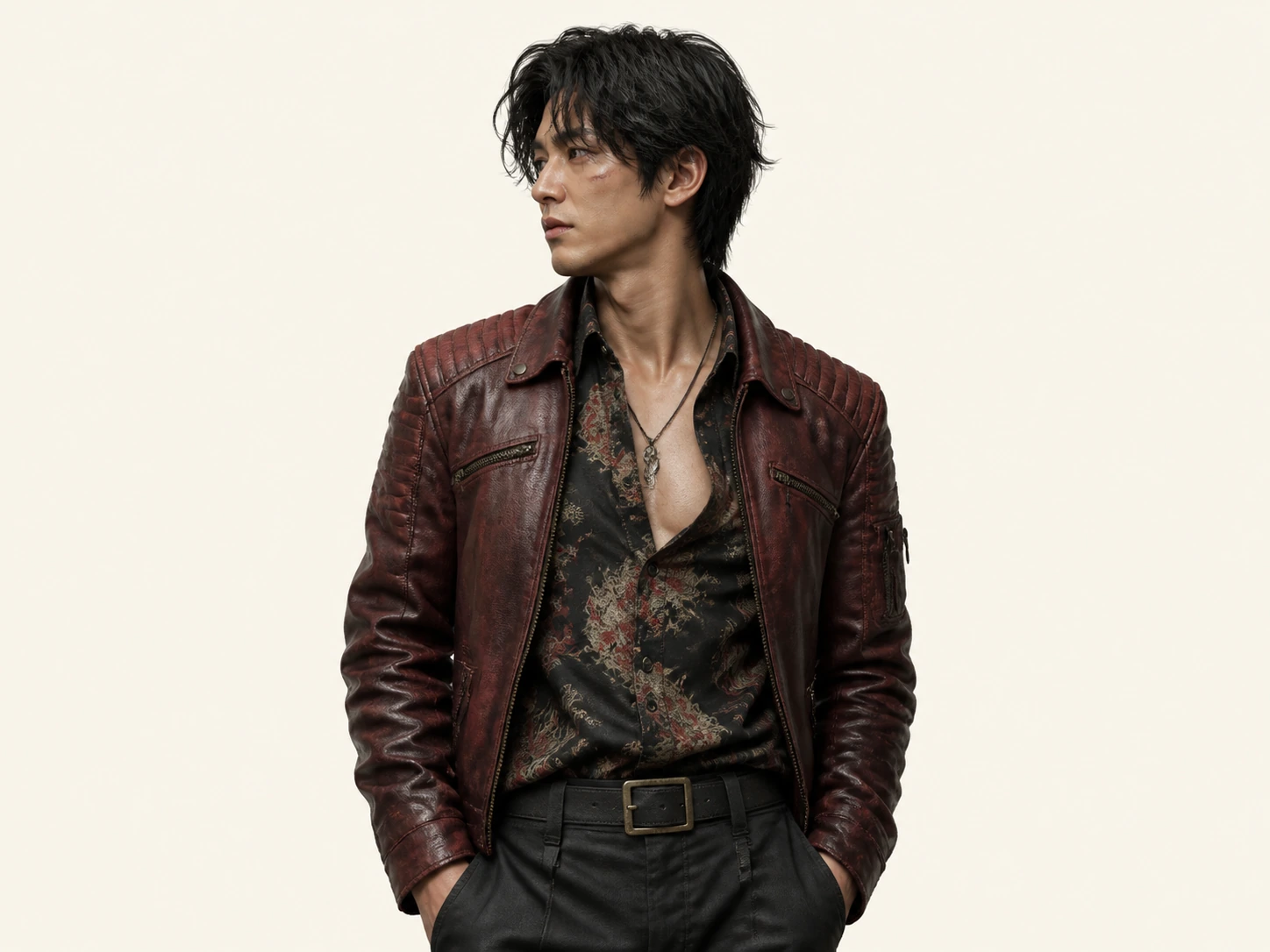
Celeste, porcelain couture AI avatar
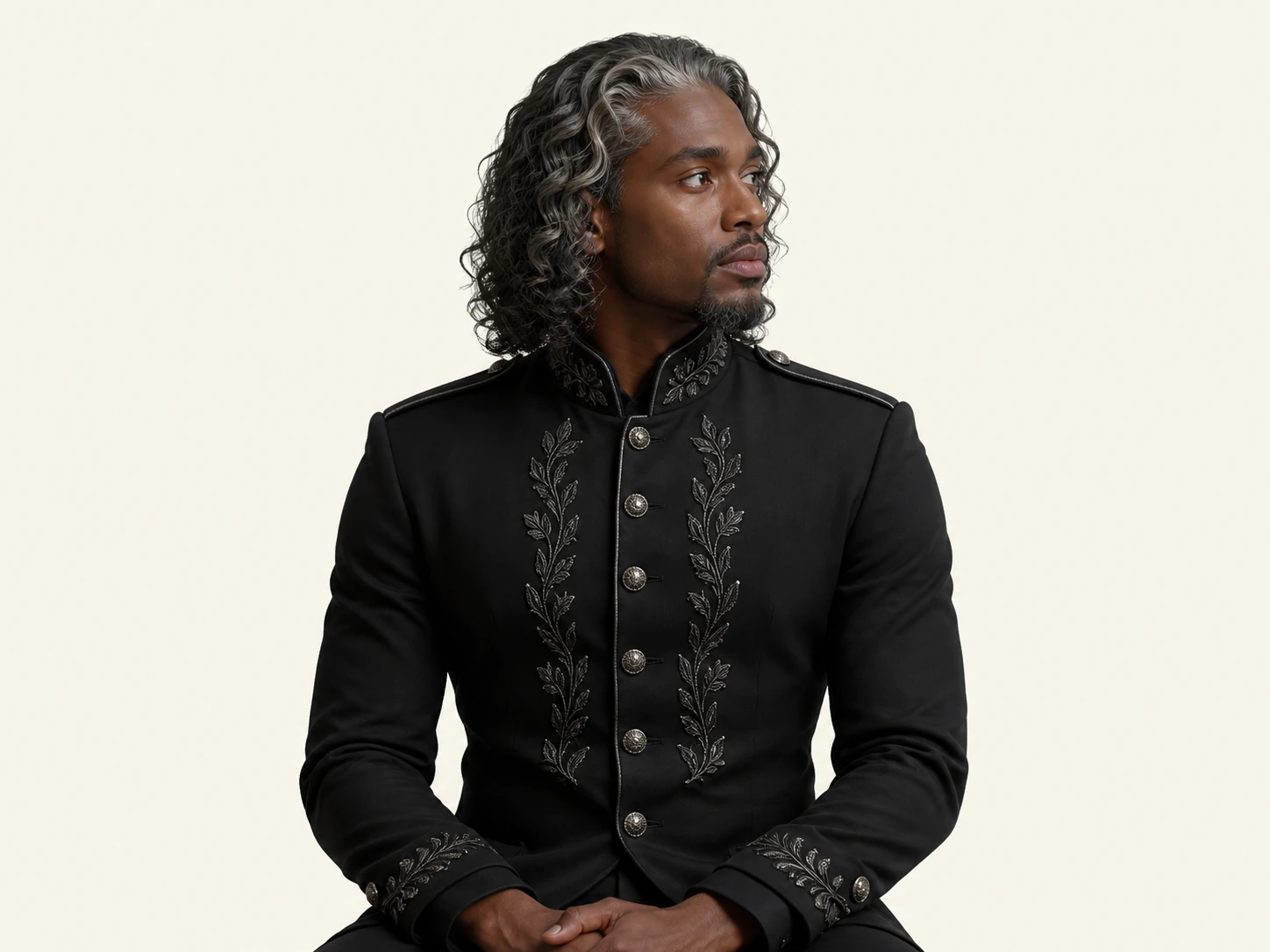
AI avatar

Add an AI avatar

Choose an AI avatar for scenes that need a face, or keep the screen on your own photos and clips.

Everything stays editable.

Open the editor and change every part of the generated video. Shortsly Help explains the controls, exports, and limits.

  • CaptionsStyle and time every word.
  • TransitionsAdd a transition between any two scenes.
  • Media libraryReuse your photos, video clips, and saved assets.
  • Background removalRemove the background from any photo or image.
  • Green screen removalRemove green, blue, or magenta backgrounds.
  • Video animationsZoom, drift, pan, punch, or shake a video clip.
  • Sound effectsPlace and trim effects on the timeline.
  • TimelineMove, split, duplicate, and adjust video clip timing.
  • BackgroundsChange the background behind every scene.

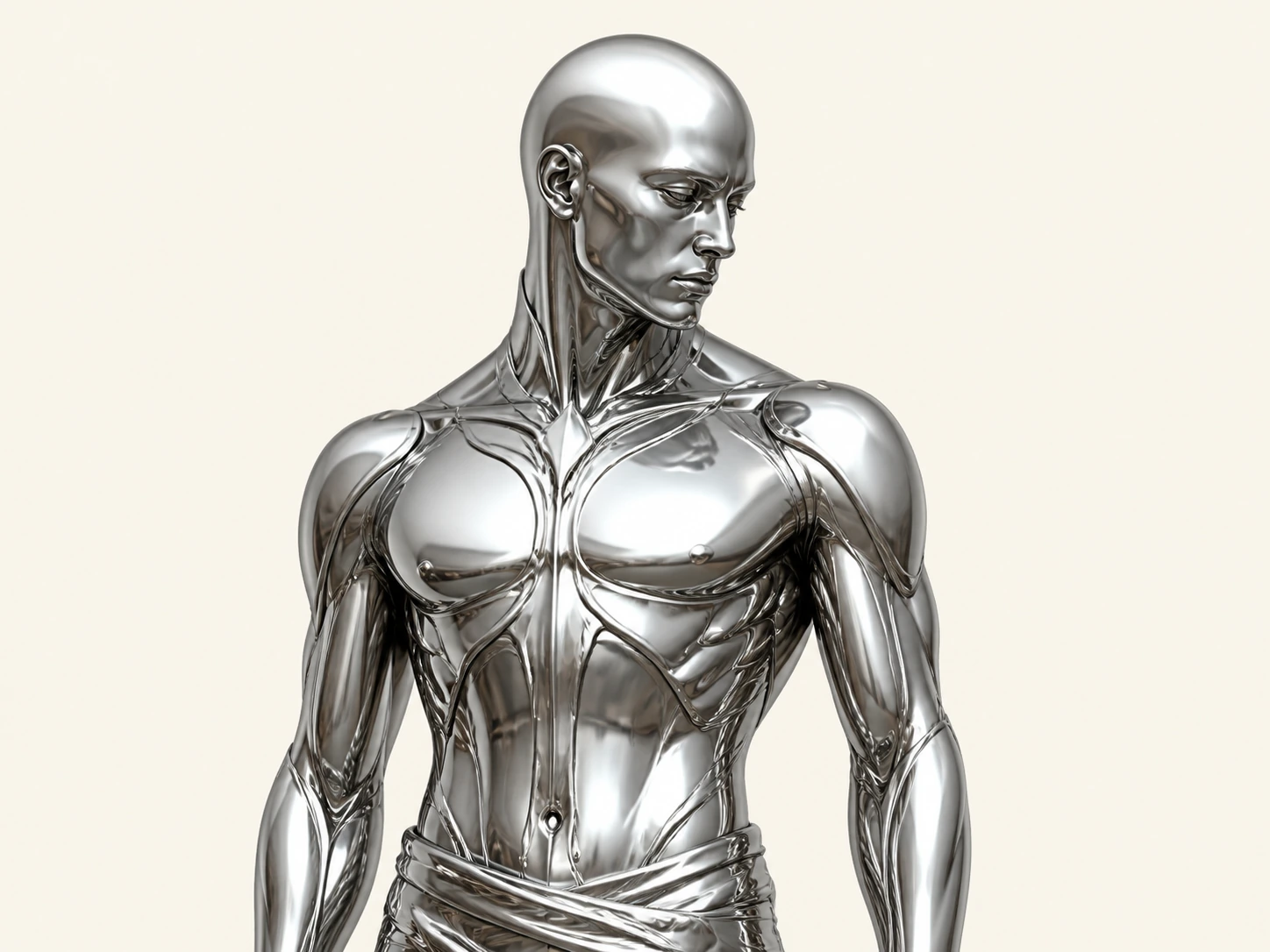
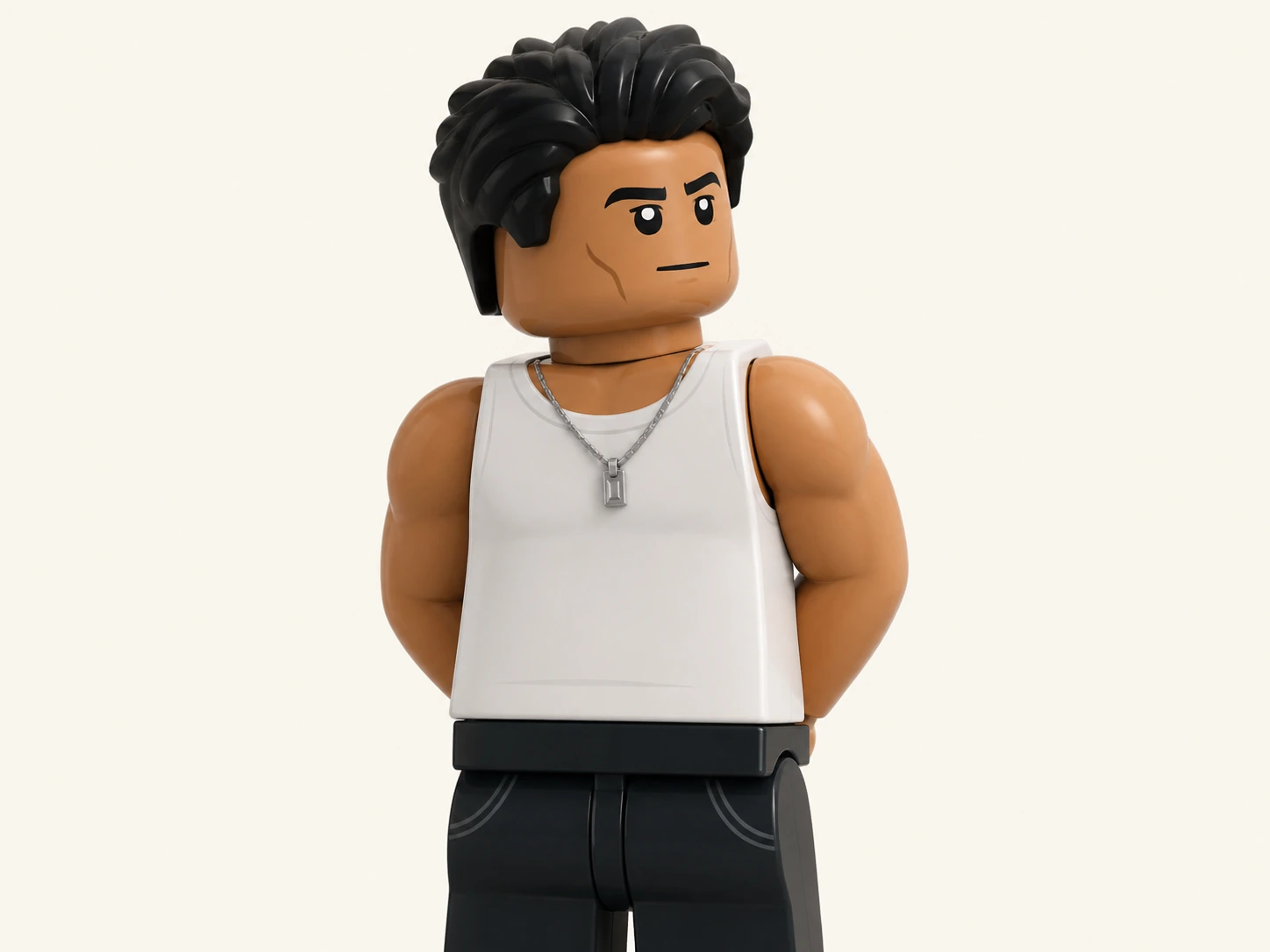
Choose a visual style for your video or create your own.

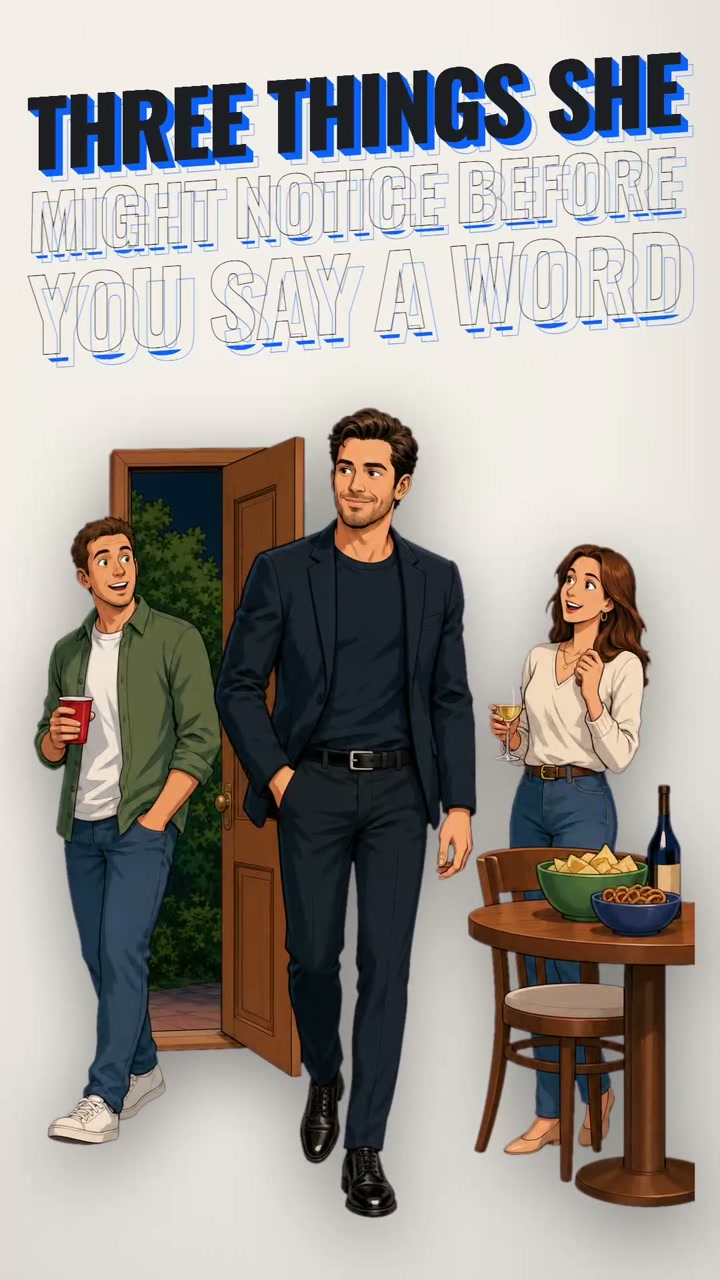
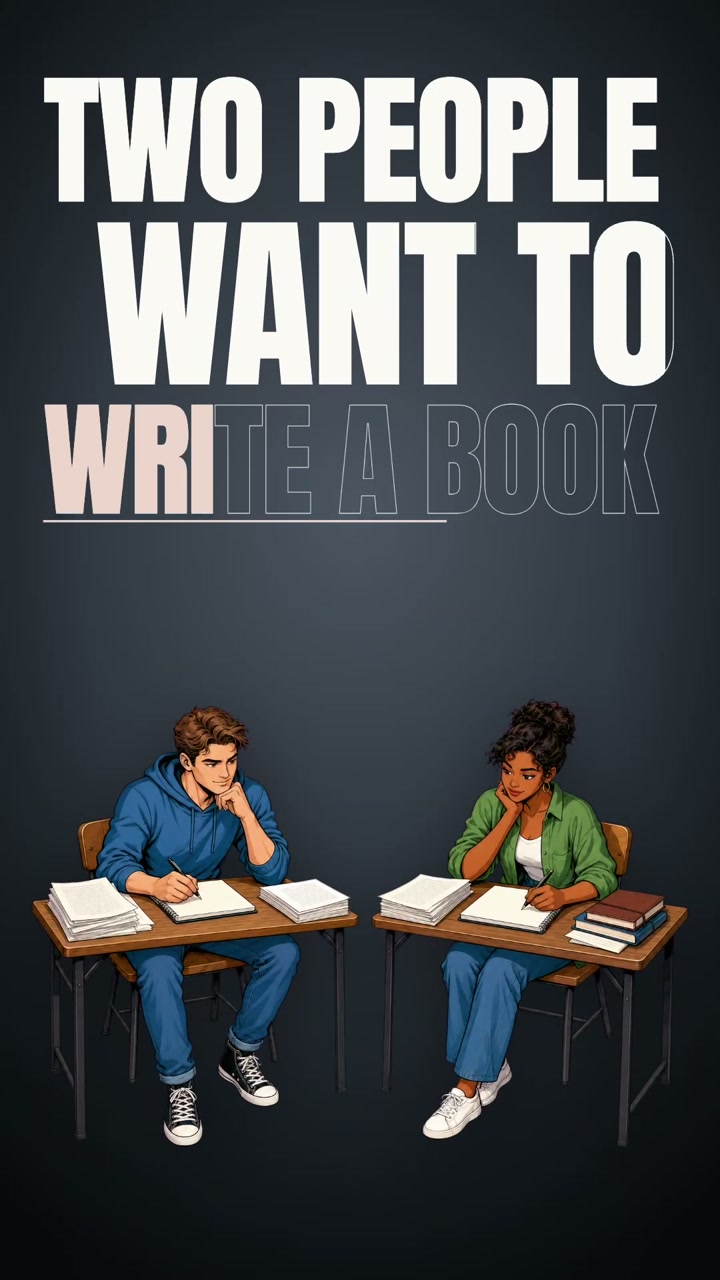
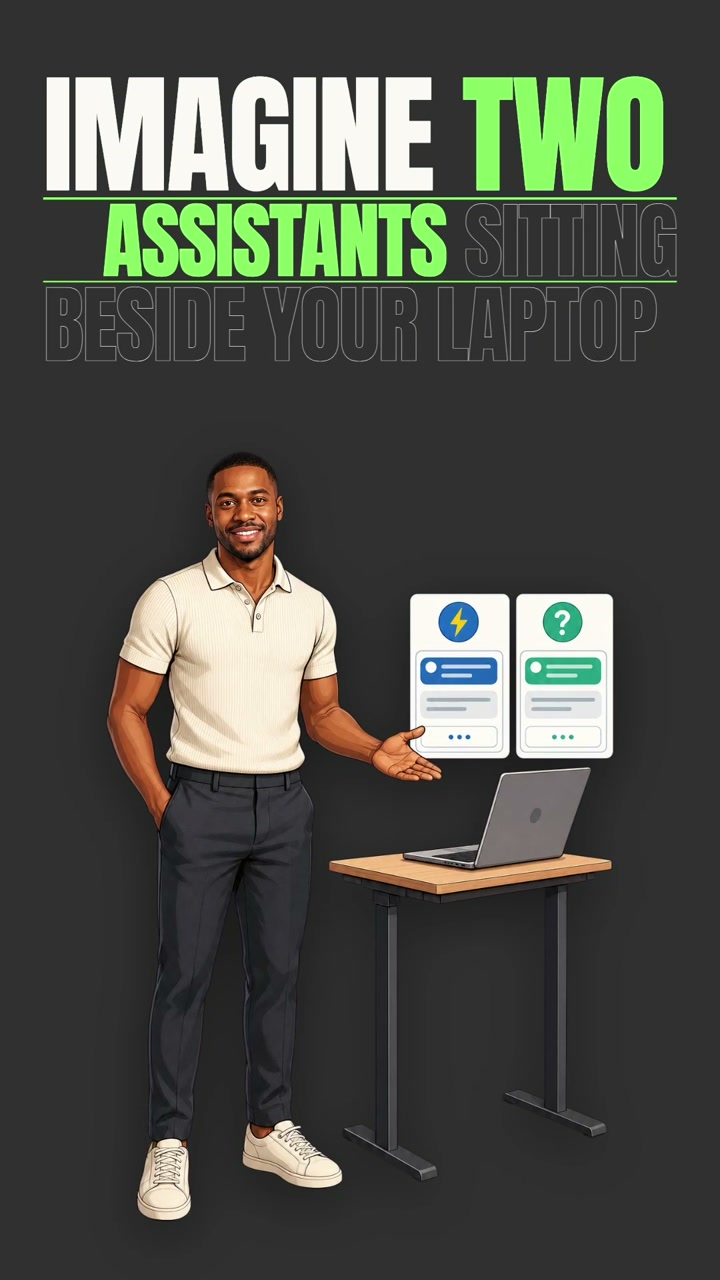
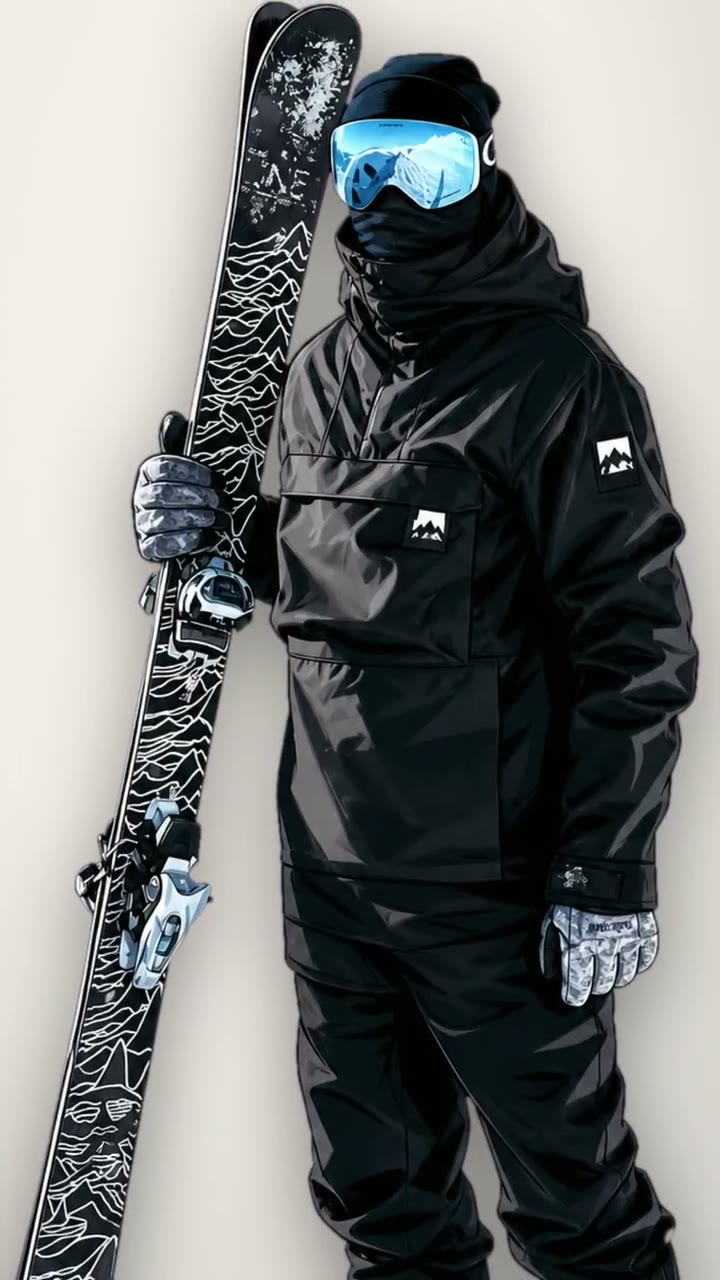
Realistic, cartoon, or anime. Pick a visual style for explainer videos. The editing workflow stays the same.

Frequently asked questions

How long does AI video generation take?

Shortsly generates a short video in minutes. Processing time varies with script length, the number of generated images, and voiceover requirements.

How many credits does an AI video use?

Credit usage depends on the script length and the amount of new content generated, including images and voiceover. Editing, exporting, and reusing saved assets do not consume additional credits.

Can I edit the generated video?

Yes. Shortsly creates an editable video project with separate tracks for video clips, captions, voiceover, sound effects, and backgrounds. Export the final video as an MP4 when it is ready.

Which video sizes and formats are supported?

Shortsly supports 9:16, 1:1, 16:9, and 4:5. Videos export as H.264 MP4 files at 30 fps. Desktop exports use the full project dimensions; mobile exports preserve the selected ratio and cap the long edge at 1280 px.

Can I reuse the same AI avatar?

Yes. Save a character as an AI avatar and reuse it across projects. Saved visual styles can be reused in the same way.